Faculty Help: Add Links to Physical Reserves Lists
Linking to your PHYSICAL RESERVES list from your Blackboard Learn shell:
- Find your reserves list(s) by searching for instructor or course names on the Student Course Reserves page.
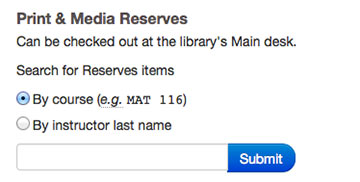
- Once you find your list in the catalog, copy the URL from your browser's address bar.

- Log into your class at Blackboard Learn.
- Navigate to the folder or module where you want the item(s) to appear.
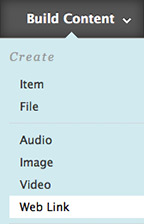
- Select Build Content > Web Link.
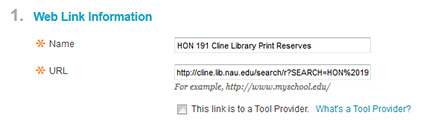
- In the Web Link Information section, enter a title for the list into the Name field (e.g., List of Materials on Reserve at Cline Library) and paste the copied URL into the URL field.
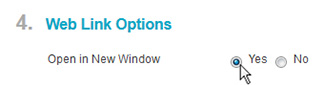
- Scroll down to 4. Web Link Options. Make sure "Open in New Window" is set to "Yes."
- Click Submit.
For further questions or help with Blackboard Learn, send a message or call 928-523-9142.